
Checking your iPad is online when setting up a new Passtab iPad station
If you are having issues logging in to set up your Passtab iPad Station you can run a health check at the device to isolate the issue.
You will need to be running the Passtab iPad App version 1.5.11 and above
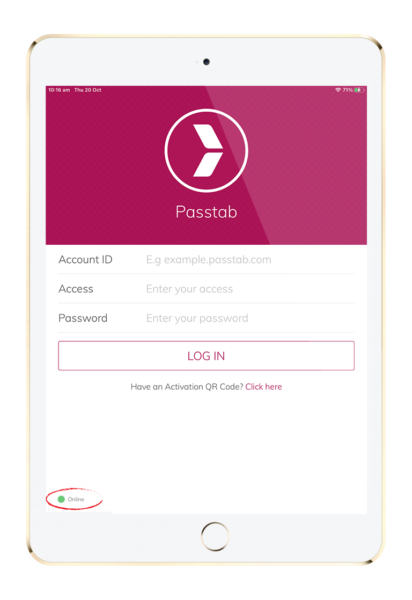
If the bottom left hand corner of your Passtab iPad App shows “Offline” this means your iPad is not connected to the internet. Passtab requires internet connection to operate. Please connect your iPad to the internet. You may also need to connect your iPad to the school network as a “Registered device”. For more infomation on this visit: iPad keeps going offline (Solution: add to network as a registered device)
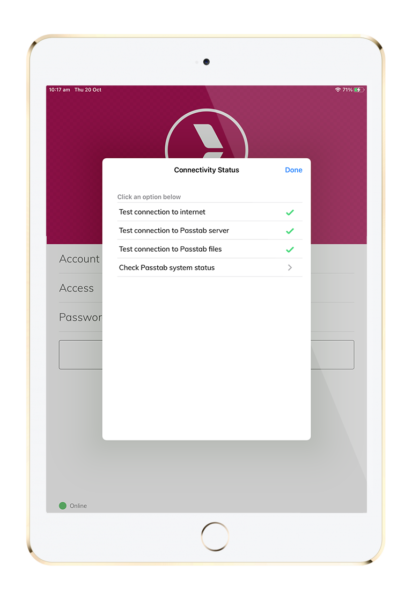
If your Passtab iPad App shows Online, and you are experiencing issues, you will still benefit from running the System Status Health Check on your iPad, as listed below. This will assist you to isolate the connectivity issue and solve it on your network.
Click the button “online” in the bottom left hand corner of the Passtab iPad App
As seen below:

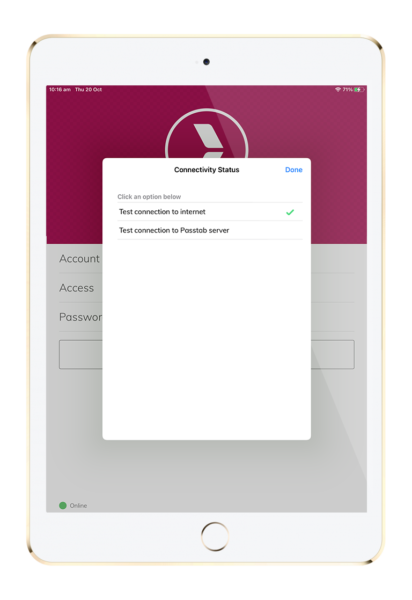
Please whitelist Passtab on your firewall or network
.passtab.com.
*.passtab.com.*
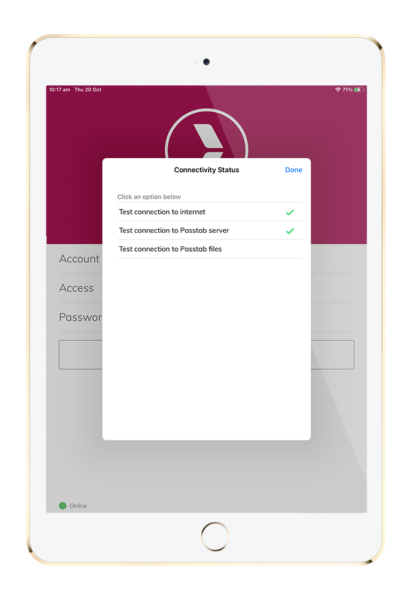
If this fails, the issue is your network not allowing Passtab files and images through your firewall.
Please whitelist these URL’s on your firewall or network:
http://s3-ap-southeast-2.amazonaws.com/passtab.com/*
http://s3-ap-southeast-2.amazonaws.com/uploads.passtab.com/*
http://s3-ap-southeast-2.amazonaws.com/uploads.passtab.eu/*