

Initial checks/advice
- Have you previously been printing badges for sign ins? And have you requested print activation by the Passtab configurations team?
- Please check the power for the unit is plugged in and turned on at the switch on the wall
- Please check the power on the printer (is on (green light on)
- Please do not turn the printer power off at the wall at any time, it will loose connection to the iPad and you will have to reconnect it. If you must turn it off ,use the button on the face of the printer (on/off button)
Disconnect then re-connect the Printer to your Passtab iPad App
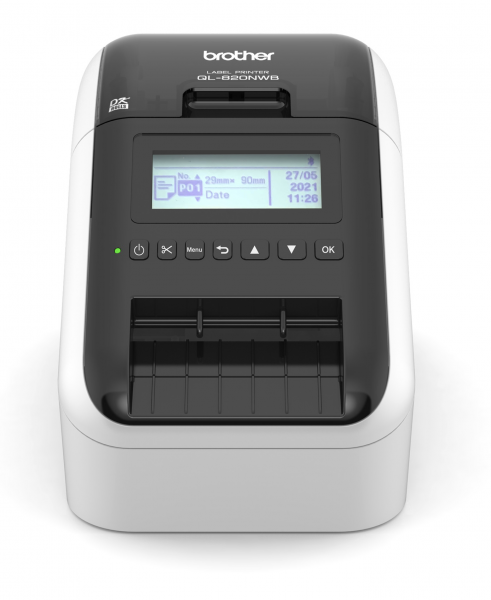
These are instructions for the Brother 820NWB printer, connected to the Passtab iPad App using Bluetooth.
Make sure the Bluetooth logo is on the printer and there no WIFI icon showing.
Ensure the printer screen is showing P01 (see below image). Click back until this screen appears.
- Tap school logo 10 times and click on *Forget current printer*
- Turn the printer off for 10 seconds and turn back on.
- Get out of Passtab and go to iPad Settings > Bluetooth
- If Printer is connected, press the blue *i* and click forget printer
- Now the printer should show up again in the list, click the printer and it will connect
- Go into Passtab click connect printer, then tap the printer
- Go back, then choose “Print test page”
- On the printer click on Menu > scroll down to Bluetooth click OK > Then make sure the second option ‘Automatically reconnect’ is ON
- Now press back all the way back to PO1 screen. Close the pop up menu on the Passtab iPad App and do a test sign in. Ensure you are signing in as the type of person that would usually get a badge printed.If you are still experiencing problems, please email support@invision.net.au