
Working With Children Check (WWCC) Live Check
Passtab will verify that your visitor’s WWCC is valid
Sighting a physical WWCC card is not an accurate determination of a person’s working with children status. The person’s WWCC card must be checked against the Working with Children Check database every time they visit.
Passtab will ensure a WWCC card is:
- Requested from every visitor that requires one
- Not requested from people who do not
- Verified live on the Working with Children Check database, every visit
- Stored on a person’s Quickpin for easy checking on regular visits
- Available in auditable reports
Click here to contact our team requesting activation of the WWCC Live Check module on your account
What details are required to validate a WWCC Card
Passtab collects the information required by the Working with Children Check database to complete the check:
- Last name
- Card number
When these details are verified through the Working with Children Check database, the card number (representing the validity of the clearance status) is checked, and the expiry date is also checked to ensure the card is current. Passtab does not need to collect expiry date from the cardholder, the process of running the card number and surname through the Working with Children Check database will automatically provide information on the expiry date for that card.
Casual visitors (without a Quickpin)
Passtab will collect the details listed above. These details are sent, immediately, by Passtab to the Working with Children Check database. If they are valid, entry is granted, if they are not valid entry is denied.
Regular visitors (with a Quickpin)
Create a Quickpin to make sign in faster and more convenient. The Quickpin stores the WWCC details, and verifies the card on every visit.
A visitor with a Quickpin will also be visible in your Passtab dashboard as a stored card. This will allow you to run a check on a single or multiple cards any time you wish.
For instructions on creating a Quickpin, visit this article
Verifying stored cards
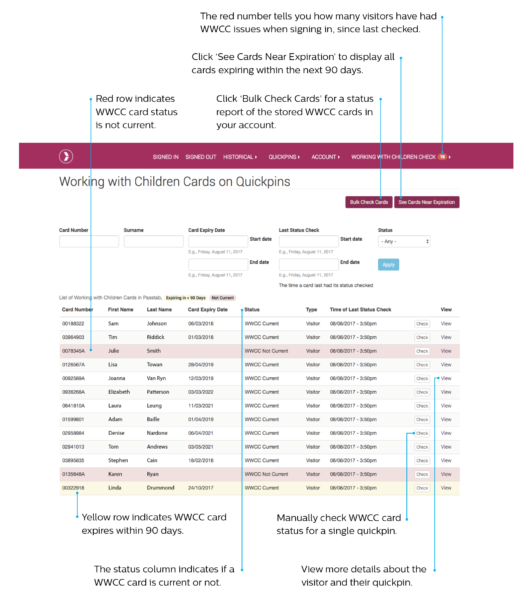
WWCC details that are stored on Quickpins will appear in the Passtab dashboard. There are two functions here:
- Single card check
- Bulk card check
- At any time, you can check a stored WWCC
- Click “WWCC” in the main menu
- Locate the cardholder using the search filters
- Click “Check” to initiate the verification process with the Working with Children Check database
- Or, click “Bulk Check” at the top of the page to verify all stored cards
- The results will appear on screen
Who will Passtab collect WWCC details from
Our configurations team will work with you to design the right workflow for your WWCC collection criteria. It will likely depend on the reason for their visit, who they will be in contact with and under what conditions. Passtab will provide a series of options to ensure people who do not require a WWCC for their visit can by-pass this requirement and those that do, are required to provide a valid WWCC.
Passtab WWCC module alerts
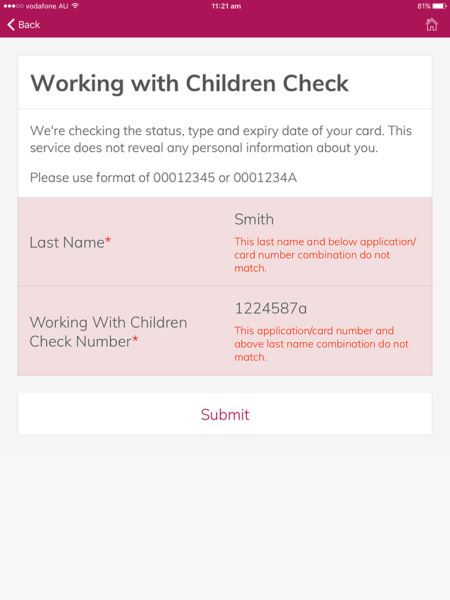
Card number and surname do not match
This may mean the card number does not match the last name of the card holder. The information on the WWCC card must be entered exactly as it appears on the card, into Passtab.
1. The visitor will get the chance to rectify any mistakes in their card number or surname.
2. Your Passtab admin area will show a failed attempt See: Working With Children Check > Alerts. Click here to find out why.
3. When the visitor fixes the mistake, Passtab checks again and if correct the visitor may sign in.
4. If the visitor is unable to enter a correct WWCC number and name, they will not be able to sign in.
5. Where a person cannot successfully sign in, an email alert will be sent to the schools nominated email address. (This can be multiple emails. It is generally set to your main school email address, to change this please contact us).
WWCC not current
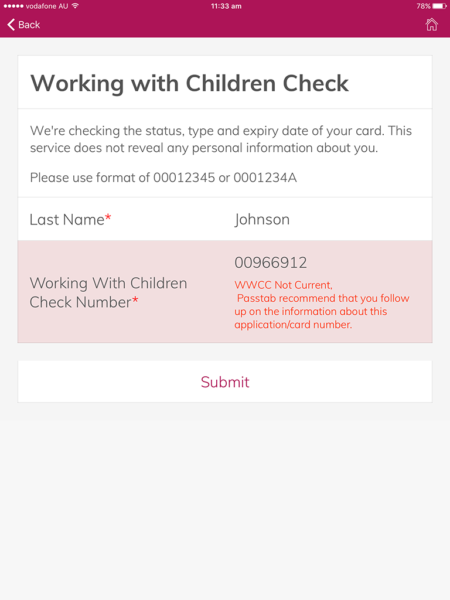
This means the check is not valid (ie: not approved or an approved check revoked) or the card has expired.
1. The visitor will not be able to sign in to the school.
2. An email alert will be sent to the nominated email address. (This can be multiple emails. It is generally set to your main school email address, to change this please contact us).
3. Passtab recommend that you follow up on this information with the cardholder.