

RFID set up instructions for the iPad Floor Stand
Attach RFID mounting plate to iPad stand
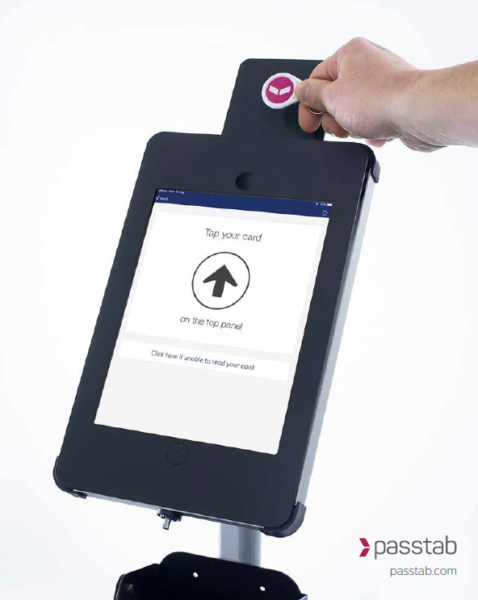
-
Assemble the floor stand as per the instructions contained in the stand box
- Fit the iPad into the enclosure
- Leave unlocked (you’ll need access to the home button later)
-
Fasten the RFID mounting plate
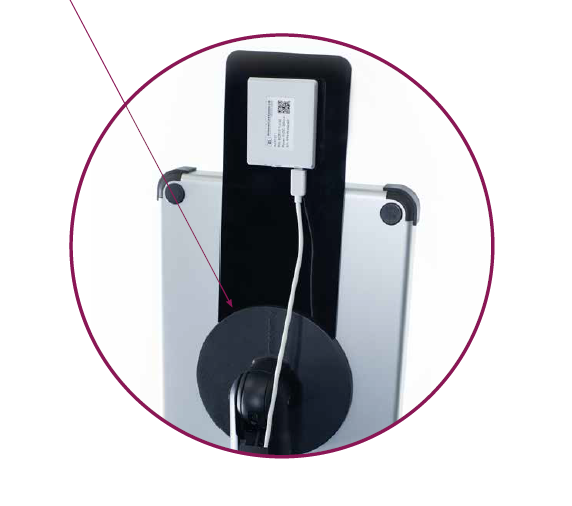
- Remove the backing from the double sided tape on the rear of the mounting plate.
- Position the mounting plate onto the back of the stand and press firmly into place.
- Align this bracket onto the circle and ensure it is sitting square to the stand
Setting up the RFID scanner
-
Turn on the RFID reader
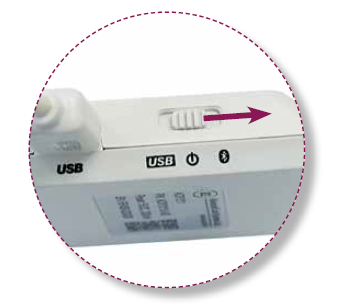
- Slide the RFID switch over to the Bluetooth logo. It will beep and a blue light will flash.
- The RFID reader must be plugged into a power source permanently.
-
Turn on Bluetooth on your iPad
- Click on the iPad settings App

- Then lick on Bluetooth in the left menu.
- Ensure the Bluetooth toggle is switched to “green”
- Exit Settings by clicking the iPad home button.
- Click on the iPad settings App
-
Connect the RFID reader to the Passtab iPad App
- On the iPad home screen. Click on the Passtab icon.

- Once Passtab has opened, tap your logo approx. 10 times to reveal the hidden menu.
- Click on “RFID settings”
- Then click “Scan for RFID Reader”
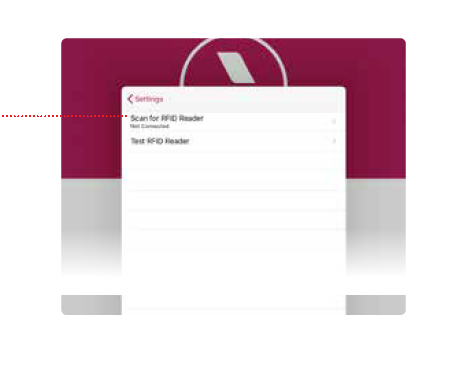
- Click the name of your RFID Scanner listed. It will start with the letters ACR.

- If you can’t see your RFID Scanner listed, turn the unit off and back on by sliding the switch to the centre and back to the Bluetooth side. It should now appear on the screen.
- Once you’ve clicked the RFID reader in the list, your RFID reader is now connected to the Passtab iPad App.
- On the iPad home screen. Click on the Passtab icon.
-
Test the RFID reader connection
- From the RFID settings menu click “Test RFID Reader”
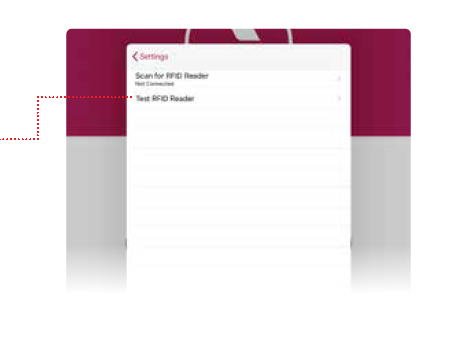
- Tap your RFID card on the RFID reader. When you tap the card the reader will beep and you will see the number Passtab associates to that with that card appear in the on screen list. No beep? No serial number on screen? Click here
- Check this number is the same number you understood that RFID card to be. The serial number appearing on screen will be the number that must be linked to the Passtab Quickpin profile for the person who uses that card. If the serial number that appears in the on screen list is not the number you expected, click here for help
- To finish your setup click Settings then the “Done” button on the iPad settings menu.
- From the RFID settings menu click “Test RFID Reader”
-
Activate RFID on your Passtab account
- Our configurations team will activate the RFID module on your Passtab account
- Please email support@invision.net.au with the following details:
I have connected the RFID reader and successfully done a test tap that resulted in a “beep” and a serial number on screen.
Please configure my Passtab account for RFID.