

RFID/HID reader/scanning not working
Passtab not reading your RFID card or tag? The RFID or HID card/tag number that Passtab reads is different to what you expected?
This article will assist you in troubleshooting these issues.
Passtab not reading your RFID card or tag
This means your RFID card is not compatible with the Passtab RFID reader. You have actually have a HID (not RFID) card. If you are using a HID card, you will need the Passtab HID reader. You can purchase a Passtab HID reader for desk stand here, or for a floor stand here
If you are not using a HID card, then your RFID card may have the “public” or “ID” track blocked or hidden.
This is the track that is the serial number of the card itself. It is not an assigned track that may be specific to copy printers or cashless payments at your school, it’s simple the card’s ID number. Some RFID suppliers hide or block this track. Discussing this with your RFID card supplier may identify this as the cause. Unlocking or “revealing” this public track or card ID will enable Passtab to read your RFID cards, but it would require you to issue new cards.
The RFID or HID card/tag number that Passtab reads is different to what you expected
- On the iPad home screen. Click on the Passtab icon.

- Once Passtab has opened, tap your logo approx. 10 times to reveal the hidden menu.
-
Test the RFID/HID reader connection
- From the RFID settings menu click “Test RFID Reader”
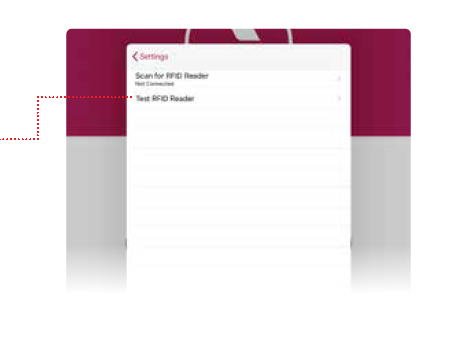
- If the serial number is not the number you expected for that card, you may need to change the format that Passtab is reading your card numbers in.
- From the RFID settings menu click “Test RFID Reader”
Your card may be any one of the following serial combinations:
Combination 1
Card ID Byte Order: Reversed
Card ID format: Decimal
Combination 2
Card ID Byte Order: Reversed
Card ID format: Hexadecimal
Combination 3
Card ID Byte Order: Normal
Card ID format: Decimal
Combination 4
Card ID Byte Order: Normal
Card ID format: Hexadecimal
Use the Passtab RFID settings menu to change the card accepted combinations, while testing your card with each combination.
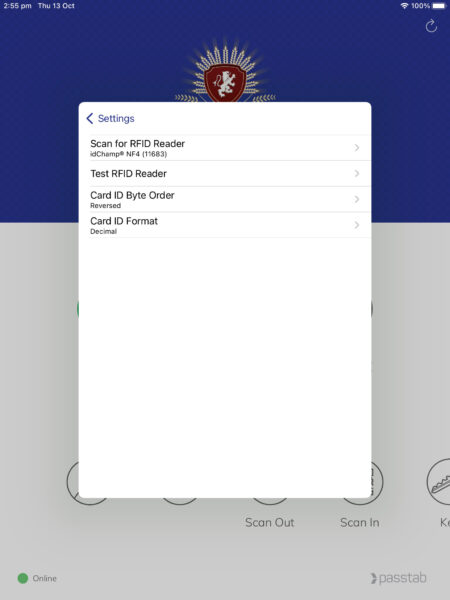
Once a test tap results in Passtab displaying the number you expected, you have found the correct combination setting for your card.